How Do You Create a Project in AutoCAD Plant 3D?
Creating a project in AutoCAD Plant 3D is the foundation for designing efficient process plants, piping systems, and industrial layouts. Whether you're a beginner or an experienced designer, understanding the correct project setup workflow can save time, prevent errors, and improve collaboration. This detailed guide walks you through everything you need to know, from creating a new project to organizing files and setting standards.
What Is a Project in AutoCAD Plant 3D?
A project in AutoCAD Plant 3D is a centralized environment that stores:
- Piping and instrumentation diagrams (P&IDs)
- 3D models
- Orthographic drawings
- Isometric drawings
- Project settings and specifications Think of it as a structured workspace that keeps all your design data organized and connected.
Step-by-Step: How to Create a Project in AutoCAD Plant 3D
✅ Step 1: Launch AutoCAD Plant 3D
- Open AutoCAD Plant 3D from your system. Once it loads:
- Go to the Start Tab
- Locate the Project Manager panel (usually on the left side)
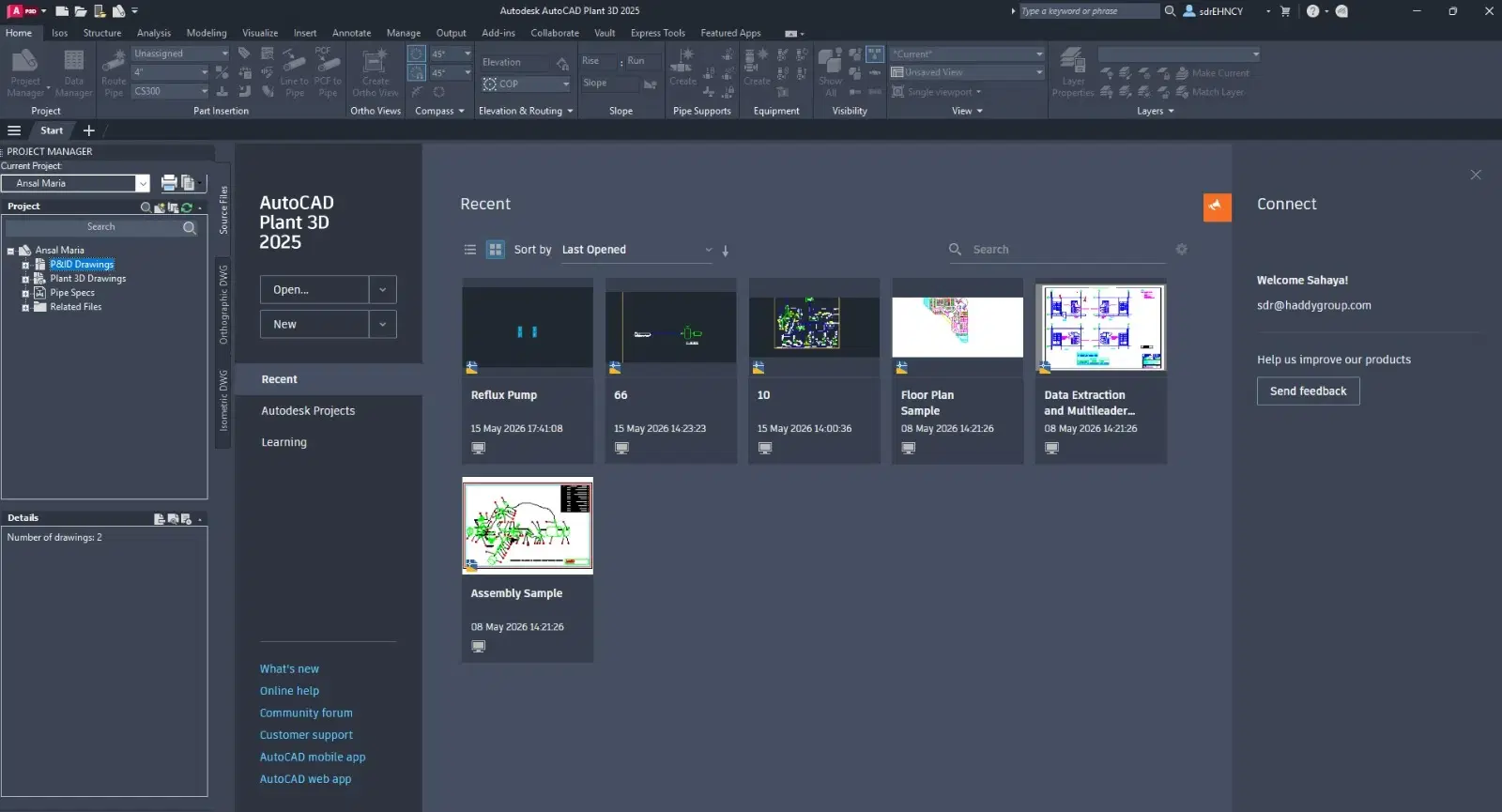 Launch AutoCAD Plant 3D
✅ Step 2: Open Project Manager
If the Project Manager is not visible:
- Type PROJECTMANAGER in the command line
- Press Enter
This panel is where all project-related actions happen.
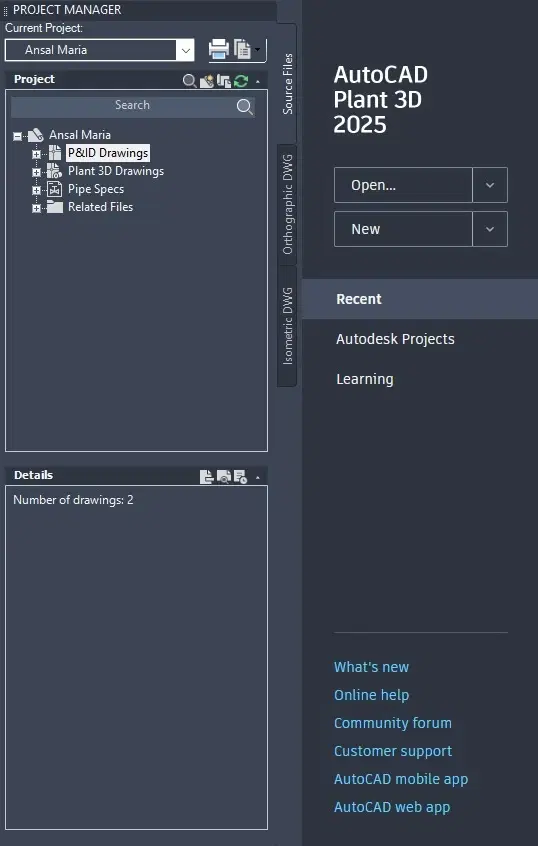 Open Project Manager
✅ Step 3: Create a New Project
In the Project Manager:
- Click the "New Project" option
- The Project Setup Wizard will open
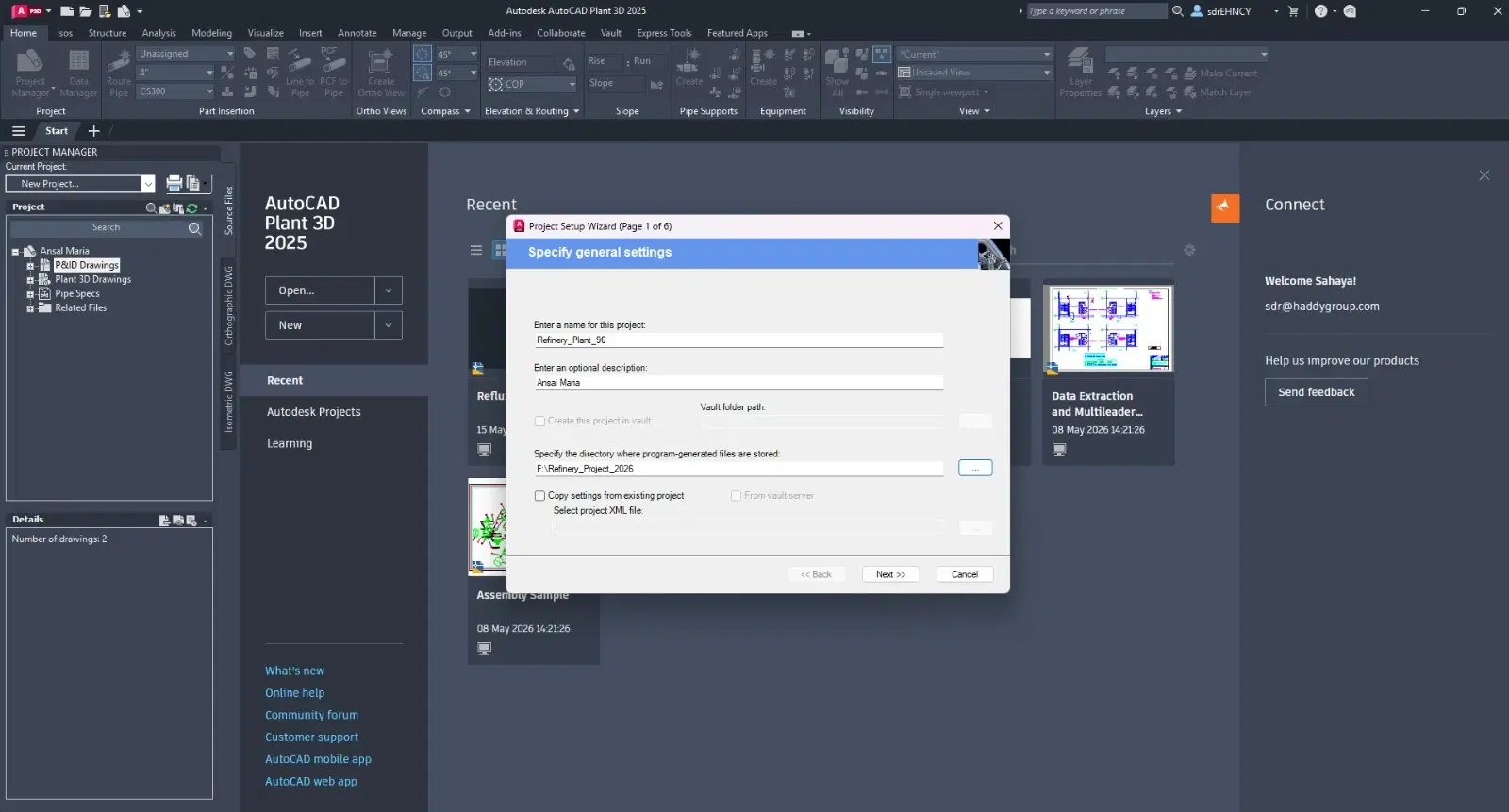 Create a New Project
✅ Step 4: Choose Project Type
You will be asked to choose a project type:
- Default Project – Best for beginners
- Custom Project – Allows advanced configuration
** Tip:** Start with Default Project unless you need specific standards.
✅ Step 5: Enter Project Details
Fill in essential information:
- Project Name (e.g., Refinery_Design_96)
- Project Description
- Location (Folder Path)
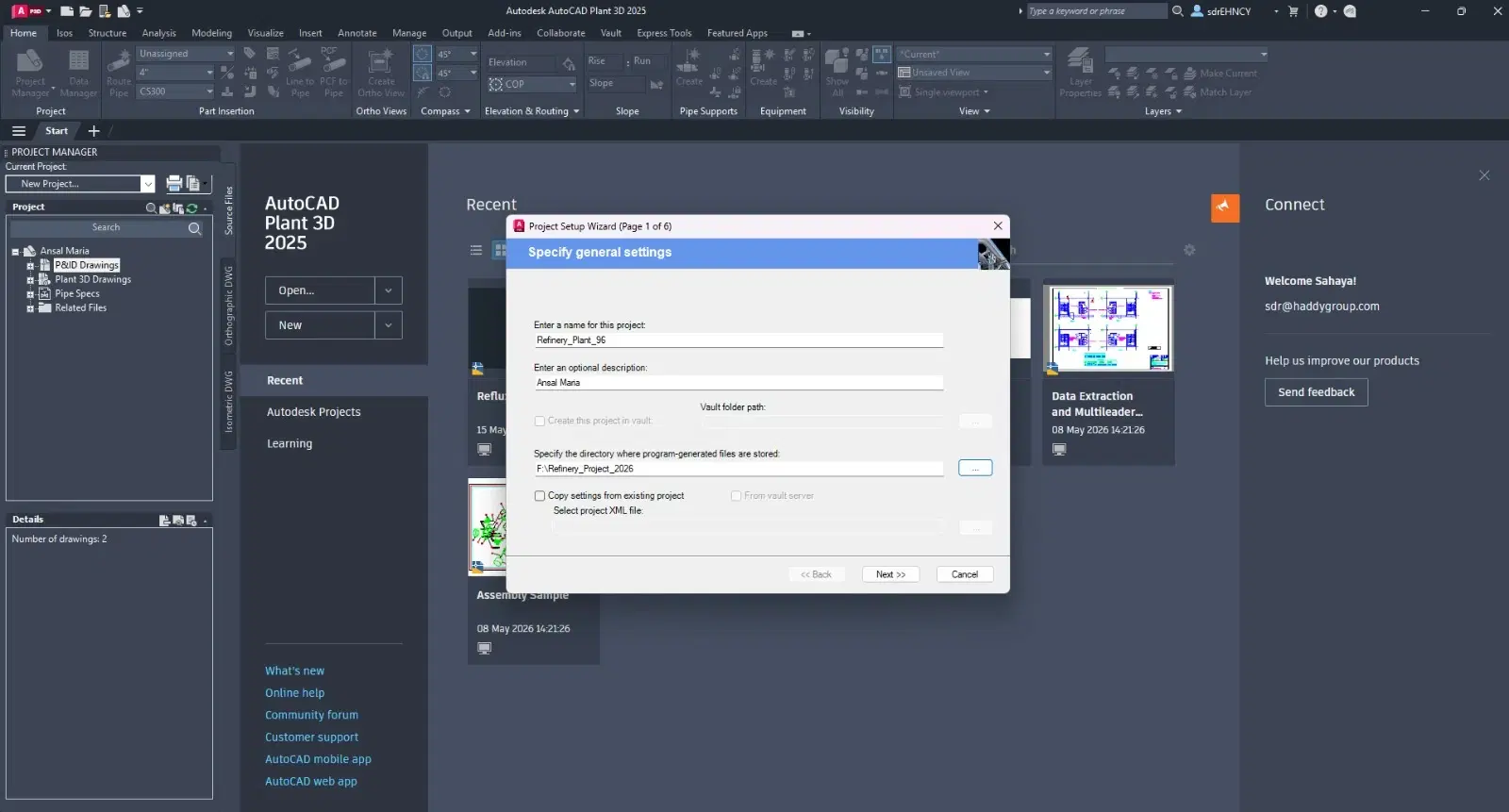 Enter Project Details
** Tip:** Keep project names clear and consistent for team collaboration.
✅ Step 6: Configure Project Units and Standards
Set your working standards:
- Units (Metric or Imperial)
- Drawing templates
- Tag formats
- Annotation styles This step ensures consistency across all drawings.
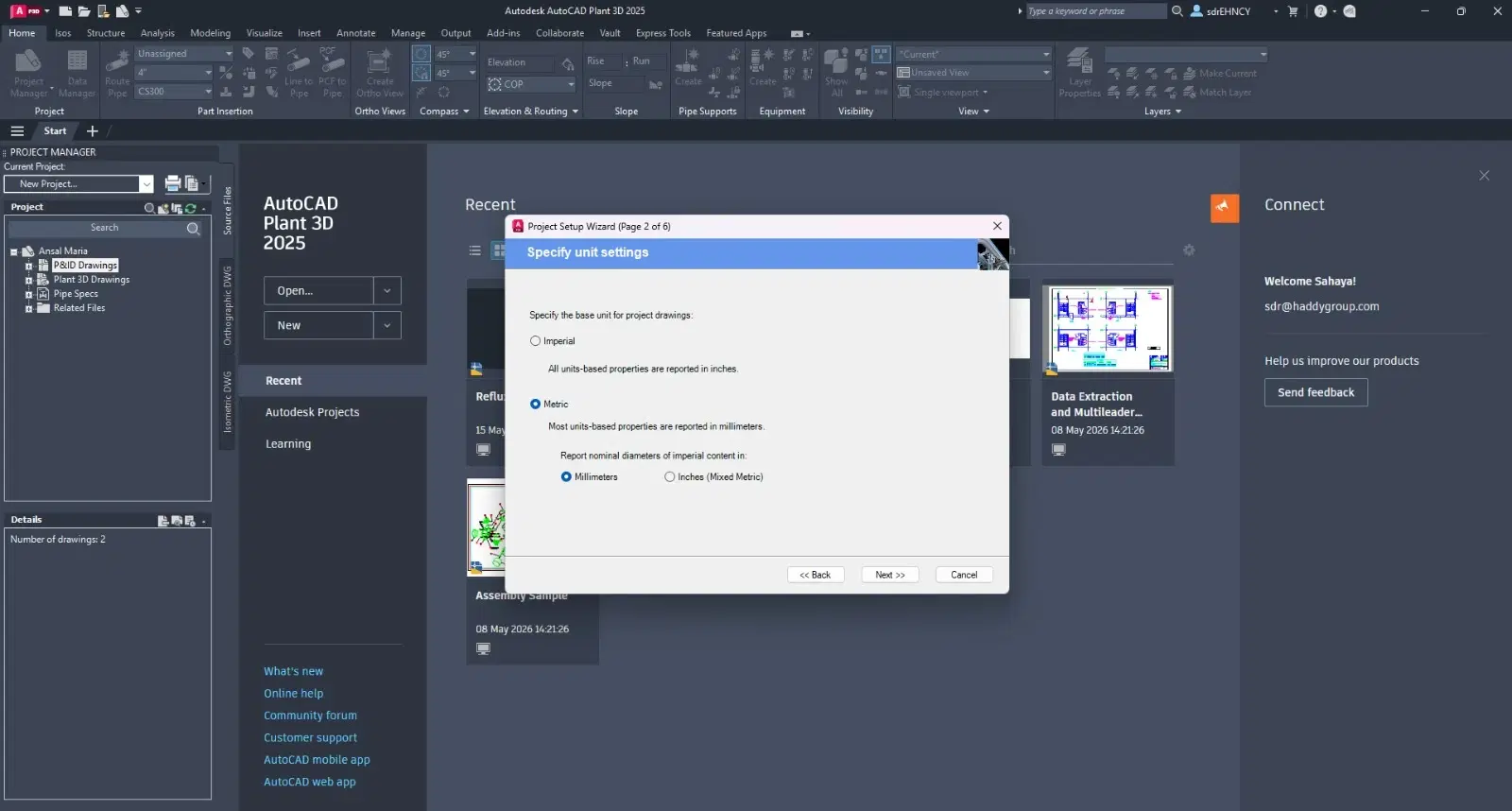 Configure Project Units and Standards
✅ Step 7: Set Up Piping Specifications
AutoCAD Plant 3D uses spec-driven design, meaning components follow predefined rules. You can:
- Select an existing piping spec
- Or create a new one using Spec Editor
✅ Step 8: Create Project Structure
Once the project is created, organize it into folders:
- P&ID Drawings
- 3D Models
- Orthographic Drawings
- Isometrics This structure helps manage large industrial projects efficiently.
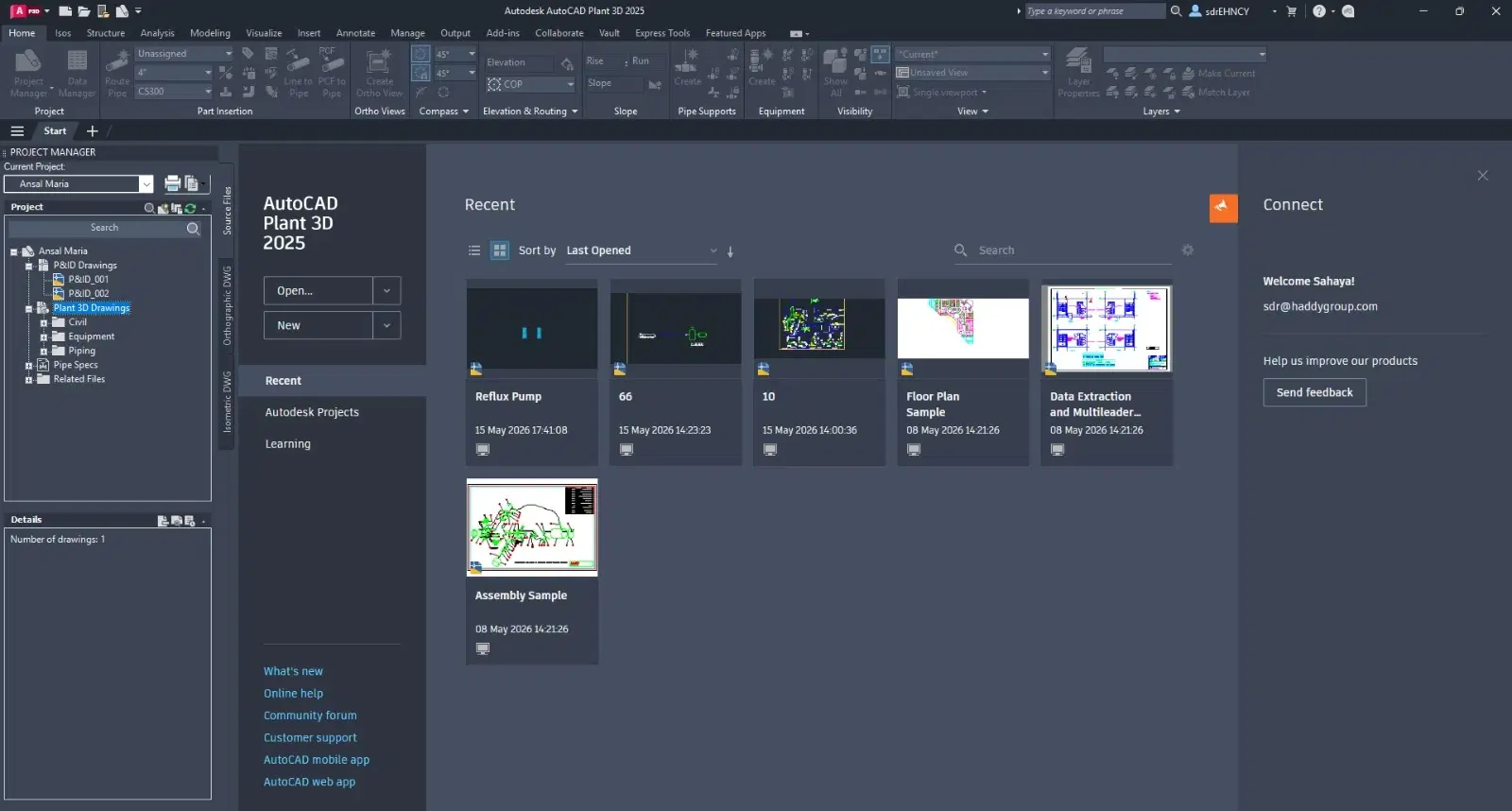 Create Project Structure
✅ Step 9: Save and Open the Project
After setup:
- Click Finish Your project will load in Project Manager You’re now ready to start designing.
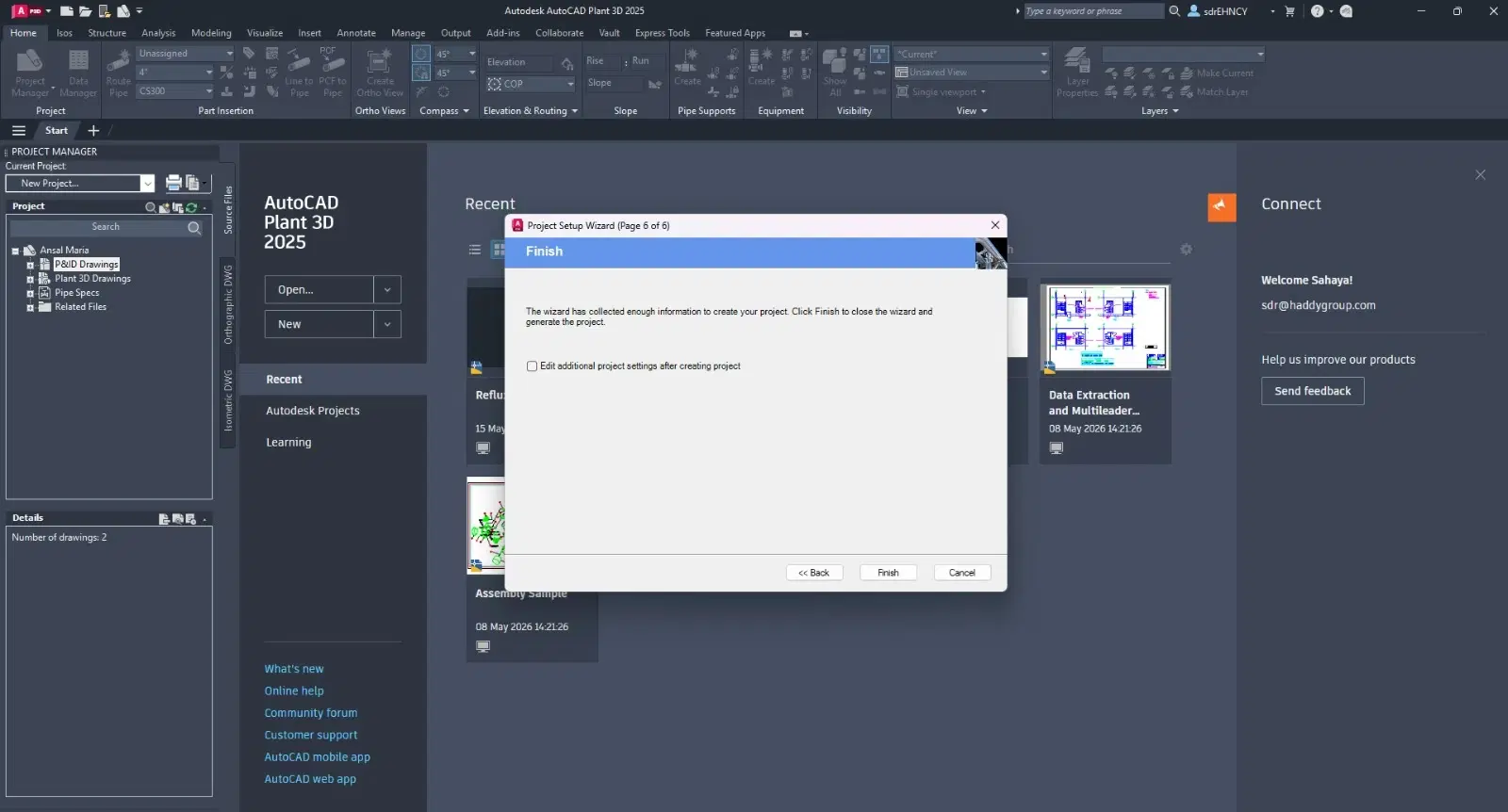 Save and Open the Project
Pro Tips for Better Project Setup
✔️ Use Templates
- Save time by using predefined templates for:
- P&IDs
- 3D layouts
- Annotations
✔️ Maintain Naming Conventions
- Use consistent naming like:
- PIP-001 (Piping Drawing)
- ISO-100 (Isometric Drawing)
✔️ Enable Collaboration
If working in a team:
- Use shared project folders
- Enable Autodesk Vault (if available)
✔️ Backup Regularly
- Always store backups to avoid data loss.
Common Mistakes to Avoid
- Skipping unit setup (leads to scaling issues)
- Using random folder structures
- Not defining piping specs early
- Ignoring naming conventions
- Overwriting templates accidentally
Why Proper Project Creation Matters
A well-structured project:
- Improves design accuracy
- Reduces rework
- Enhances team collaboration
- Speeds up project delivery
Conclusion
Creating a project in AutoCAD Plant 3D is more than just clicking “New Project.” It’s about building a structured, scalable environment for your entire plant design workflow. By following this step-by-step guide, you can: Set up projects correctly Avoid common errors Work more efficiently from day one
Frequently Asked Questions (FAQs)
Q1. What is a project in AutoCAD Plant 3D?
Q2. How do you create a new project in AutoCAD Plant 3D?
Project Manager, click New Project, and follow the setup wizard to define the project name, location, and configuration settings.
Q3. Where is Project Manager in AutoCAD Plant 3D?
PROJECTMANAGER in the command line to open it.
Q4. What is the default project template in AutoCAD Plant 3D?
Q5. Can I change project settings after creating a project?
Project Setup.
Q6. What are piping specifications in AutoCAD Plant 3D?
Q7. How do I organize files in an AutoCAD Plant 3D project?
P&ID, 3D Models, Orthos, and Isometrics, while maintaining clear and consistent file naming conventions.
Q8. What units should I use when creating a project?
Q9. Can multiple users work on the same AutoCAD Plant 3D project?
Q10. How do I add drawings to a project?
Project Manager, right-click the relevant folder such as P&ID or 3D Models and select New Drawing.
Q11. What is the difference between P&ID and 3D model in AutoCAD Plant 3D?
Q12. Why is my Project Manager not showing in AutoCAD Plant 3D?
PROJECTMANAGER in the command line or enable it through the View tab.